md2pdf Feature Showcase & Rendering Test
This document serves as both a user guide and a comprehensive rendering test suite for the md2pdf typesetting engine. It includes all supported Markdown and layout elements to verify visual layout quality, vertical spacing, and formatting.
1. Quick Start Guide
md2pdf is a pure-Python Markdown-to-PDF compiler that translates standard Markdown and extended features (like LaTeX equations and Mermaid diagrams) directly into print-ready PDF files using ReportLab.
Command Line Interface
Convert this document to a PDF:
Watch for changes and automatically re-render the PDF:
Enable validation checks without writing a PDF:
Run validation and output results in JSON format:
Run in offline mode to use placeholders for network-dependent elements (e.g. diagrams):
Compile a deterministic PDF (byte-identical builds for CI caching/reproducibility):
Programmatic Python API
from md2pdf import convert, Config, Pipeline

# Direct conversion
convert("docs/showcase.md", "docs/showcase.pdf")

# Custom pipeline settings
config = Config(
    input_file="docs/showcase.md",
    output_file="docs/showcase.pdf",
    offline=False,
    min_image_scale=0.75
)
pipeline = Pipeline(config)
pipeline.run(raw_md="# My Doc\nSome text.")
2. Heading Typography Hierarchy
Below is the vertical stack of headings from H1 through H6. Heading levels 5 and 6 fall back to the H4 style for clean presentation since standard PDF engines support up to 4 heading levels out-of-the-box.
Heading Level 1 (H1)
Heading Level 2 (H2)
Heading Level 3 (H3)
Heading Level 4 (H4)
Heading Level 5 (H5 - fallback to H4 style)
Heading Level 6 (H6 - fallback to H4 style)
3. Inline Elements and Styles
This section tests inline layout and inline style parsing:
- Strong/Bold: This is a strongly emphasized text block using double asterisks.
- Emphasis/Italic: This is an emphasized text block using single asterisks.
- Nested Styles: You can combine styles like bold-italic nested runs.
Code Inline: Use backticks for monospace symbols likePipeline,ThemeConfig, orbuild_default_stylesheet().- Hyperlinks: Clickable links like the md2pdf GitHub page are automatically colored.
- Strikethrough: This is a ~~strikethrough text run~~ showing a horizontal line through text.
- ==Highlight==: This is a ==highlighted text run== showcasing text with a yellow background.
- Superscript: This is a superscript text run: x^2^ + y^2^ = r^2^.
- Subscript: This is a subscript text run: H~2~O, CO~2~.
- Footnotes: Clickable footnote references[^1] linked to their definitions[^2] at the bottom of the page.
[^1]: This is the first footnote definition, explaining reference 1.
[^2]: This is the second footnote definition, containing inline formatting like bold text and ~~strikethrough~~.
4. Lists
md2pdf supports ordered, unordered, and multi-level nested lists.
Unordered Bullet List
- Top-level item A
- Top-level item B
- Nested sub-item B.1
- Nested sub-item B.2
- Deeply nested sub-item B.2.a
- Top-level item C
Ordered Numbered List
- First step in the instructions
- Second step in the instructions
- Sub-step 2.a
- Sub-step 2.b
- Final step
Task List Checkboxes
- Uncompleted task list item
- Completed task list item (lowercase)
- Completed task list item (uppercase)
- Task list item with a link: md2pdf GitHub page
- Task list item with inline code:
x = 1
5. Blockquotes
Blockquotes are styled with a left vertical accent bar and an indented block format.
"Simplicity is the ultimate sophistication." — Leonardo da Vinci
This is a multi-paragraph blockquote. It maintains indentation and the vertical border across all blocks.
Here is the second paragraph inside the same blockquote.
6. Admonition & Callout Blocks
md2pdf supports Obsidian/MkDocs style fenced admonitions (:::type, etc.) and GitHub Markdown alerts (> [!TYPE], etc.) with customizable titles and distinct border/background styling.
Fenced Admonitions
Blue / Slate Themes (note, info, todo)
:::note
This is a standard note callout block.
:::
:::info "Information"
This is an info callout block with a custom title.
:::
:::todo "Task Checklist"
This is a todo callout block for keeping track of tasks.
:::
Green Themes (tip, success, check)
:::tip "Pro Tip"
This is a tip callout block to share helpful suggestions.
:::
:::success "Completed successfully"
This is a success callout block indicating successful completion.
:::
:::check "Status Checked"
This is a check callout block verifying a positive status.
:::
Amber / Orange Themes (warning, attention)
:::warning "Potential Risk"
This is a warning callout block indicating a warning condition.
:::
:::attention "Attention Required"
This is an attention callout block for items needing care.
:::
Red Themes (danger, error, failure, bug, caution)
:::danger "Critical Danger"
This is a danger callout block for serious threats or data loss alerts.
:::
:::error "Error Encountered"
This is an error callout block showing critical execution issues.
:::
:::failure "Build Failed"
This is a failure callout block indicating a failed pipeline run.
:::
:::bug "Active Bug"
This is a bug callout block to highlight software defects.
:::
:::caution "Precautionary Note"
This is a caution callout block with red theme styling.
:::
Teal / Cyan Theme (important)
:::important "Crucial Note"
This is an important callout block highlighting key details.
:::
Unknown Fallback Theme
:::custom "Custom Type" This is a fallback custom type admonition showing the default theme color. :::
GitHub-style Markdown Alerts
[!NOTE] This is a GitHub-style
NOTEalert block.[!TIP] This is a GitHub-style
TIPalert block.[!IMPORTANT] This is a GitHub-style
IMPORTANTalert block.[!WARNING] This is a GitHub-style
WARNINGalert block.[!CAUTION] This is a GitHub-style
CAUTIONalert block.
7. Code Blocks (Syntax Highlighting)
Monospaced code blocks are typeset with syntax highlighting powered by Pygments (theme customizable via the stylesheet configuration).
import os
from reportlab.platypus import Paragraph

def hello_world(name: str) -> None:
    # A simple hello world script to verify syntax colors
    message = f"Hello, {name}!"
    print(message)
8. Tables
Tables split cleanly across page boundaries. Table columns automatically distribute width evenly across the printable area, and the header repeats at the top of every page.
| Parameter | Type | Default | Description |
|---|---|---|---|
font_body |
str |
"DejaVuSans" |
Body typeface. |
font_heading |
str |
"DejaVuSans-Bold" |
Heading typeface. |
spacing_base |
int |
8 |
Base vertical spacing metric. |
color_link |
str |
"#0366d6" |
Hex color string for links. |
Table Alignment Showcase
Below is a table demonstrating left, center, right, and default column alignments:
| Left Aligned | Center Aligned | Right Aligned | Default Aligned |
|---|---|---|---|
| Text Left | Text Center | Text Right | Text Default |
| Left text long | Center text long | Right text long | Default text long |
9. Diagrams (Mermaid)
Mermaid diagram blocks are rendered as cropped PNG images using the Kroki API and cached locally.
graph LR
    Markdown[Markdown Source] --> AST[Mistletoe AST]
    AST --> Flowables[ReportLab Flowables]
    Flowables --> Composer[Layout Composer]
    Composer --> Output[Print PDF]
10. Math & Equations (LaTeX)
LaTeX math expressions are compiled to transparent images and centered:
11. Images & Placeholders
Standard images are scaled down automatically to fit within the printable page area.
Missing Image Placeholder
If an image file is missing or corrupt, a placeholder box is rendered instead of throwing a compiler crash error:

Working Image Example
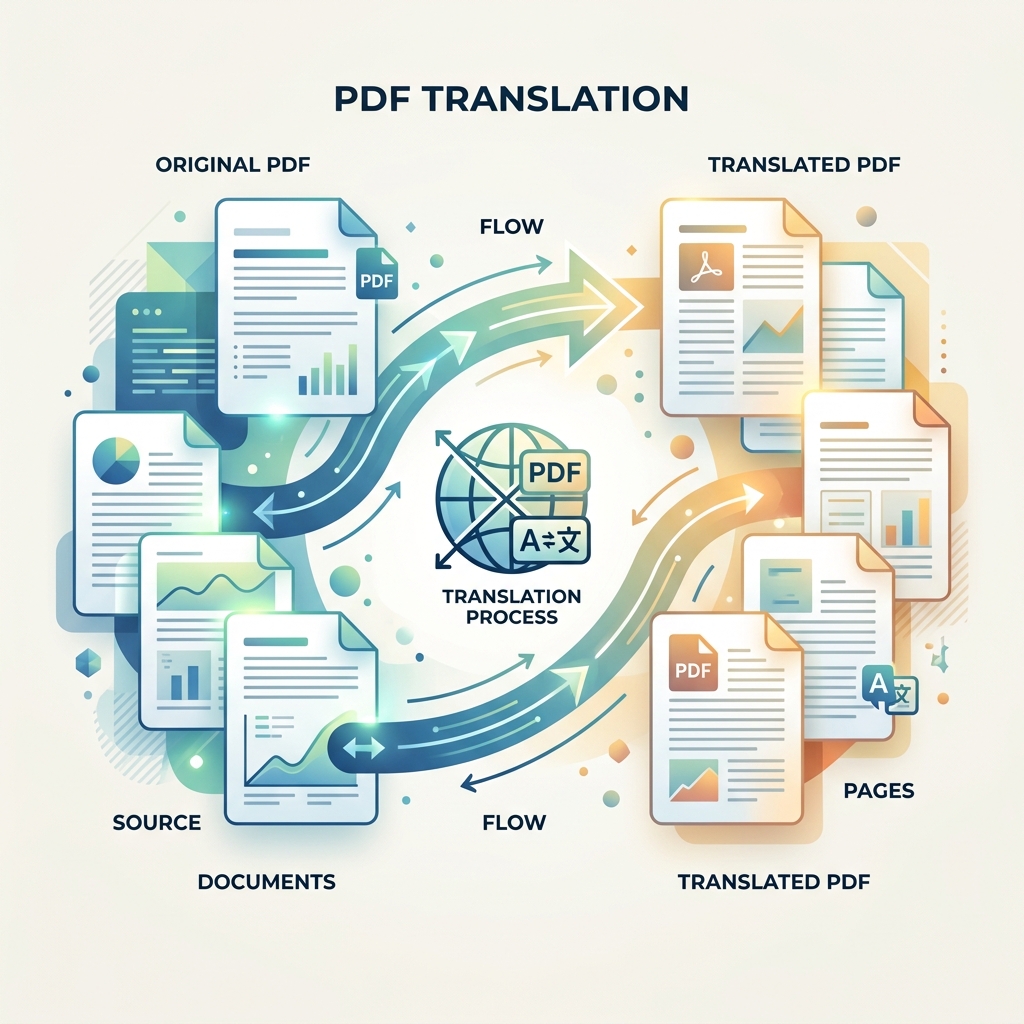
Successful image references are dynamically loaded, scaled, and centered:
12. Unicode & Special Characters
md2pdf uses DejaVu Sans as its default font family, bundled directly with the package. DejaVu provides broad Unicode coverage so that special characters render correctly out-of-the-box — no configuration required.
Latin Extended
Accented characters and diacritics appear natively without escaping:
café, naïve, résumé, Ångström, Zürich, façade, Ñoño, fiançailles, jalapeño, Łódź
Greek Alphabet
Full Greek alphabet support for scientific and mathematical documents:
α β γ δ ε ζ η θ ι κ λ μ ν ξ ο π ρ σ τ υ φ χ ψ ω
Α Β Γ Δ Ε Ζ Η Θ Ι Κ Λ Μ Ν Ξ Ο Π Ρ Σ Τ Υ Φ Χ Ψ Ω
Cyrillic
Russian and other Cyrillic scripts are fully supported:
Привет мир — Москва, Санкт-Петербург, Екатеринбург
Україна, Беларусь, Србија, България
Mathematical Operators & Symbols
Common math notation renders without needing LaTeX blocks:
∑ ∏ ∫ ∂ √ ∛ ∞ ∅ ∈ ∉ ∩ ∪ ⊂ ⊃ ⊆ ⊇
≤ ≥ ≠ ≈ ≡ ≪ ≫ ± × ÷ · ∓ ∝ ∼
Arrows
← → ↑ ↓ ↔ ↕ ↖ ↗ ↘ ↙
⇐ ⇒ ⇑ ⇓ ⇔ ⇕ ⟵ ⟶ ⟷
Box Drawing
Useful for ASCII-art tables and tree structures embedded in plain text:
┌─────────────┬─────────────┐
│  Cell A     │  Cell B     │
├─────────────┼─────────────┤
│  Cell C     │  Cell D     │
└─────────────┴─────────────┘
Currency Symbols
$ € £ ¥ ₹ ₽ ₩ ₺ ₿ ¢ ₣ ₦ ₴ ₪
Typographic Punctuation
Em dash —, en dash –, ellipsis …, curly quotes " " ' ', guillemets « », bullet •, section §, pilcrow ¶, dagger †, double dagger ‡, trademark ™, copyright ©, registered ®, degree °
Superscript & Subscript Lookalikes
H₂O, CO₂, E = mc², x² + y² = r², Aₙ → Bₙ
Custom Font via md2pdf.toml
To use a different font, add the following to your md2pdf.toml. The engine
registers the TTF file automatically — no plugin or Python code required:
[theme]
font_body      = "NotoSans"
font_file_body = "/path/to/NotoSans-Regular.ttf"

font_heading      = "NotoSans-Bold"
font_file_heading = "/path/to/NotoSans-Bold.ttf"

font_mono      = "NotoSansMono"
font_file_mono = "/path/to/NotoSansMono-Regular.ttf"
Tilde expansion (~/fonts/MyFont.ttf) is supported.
Colour Emoji (Twemoji) 😎
Emoji codepoints are automatically detected and replaced with full-colour Twemoji PNG images, cached locally on first use. No configuration required — it works out of the box.
Single emoji: 🌍 🚀 🎉 ✅ ❌ 🔥 💡 🧠 🐍 📄
Emoji in prose: The build passed 🎉 and all tests are green ✅. Deploy to production 🚀?
Faces and people: 😀 😎 🤔 😅 🙌 👏 🫶 👍 🤝 🧑💻
Nature and travel: 🌸 🌊 🏔️ 🌅 🌙 ⭐ 🌈 🦋 🌿 🍀
Food and objects: 🍕 ☕ 🎸 📦 🔑 📌 🗂️ 📊 🔬 🛠️
Emoji mixed with code references: Use convert() 🔧 and Pipeline 🚰 together.
To disable emoji substitution, pass --no-emoji on the CLI or set emoji = false in md2pdf.toml:
13. Colour Emoji Showcase
This section verifies end-to-end rendering of emoji characters across multiple contexts.
Inline Paragraph Emoji
All systems nominal 🟢 — pipeline complete 🏁. Found 3 warnings ⚠️ and 0 errors ✅.
Emoji in Headings and Lists
🗒️ Today's Task List
- 🔍 Run the full test suite
- 📝 Update the changelog
- 🚀 Tag and publish the release
- 🎉 Celebrate!
📊 Status Summary
| Component | Status |
|---|---|
| Core pipeline | ✅ OK |
| Emoji support | ✅ OK |
| LaTeX rendering | ✅ OK |
| Mermaid diagrams | ✅ OK |
ZWJ Sequences
Complex multi-codepoint emoji sequences (joined with a Zero-Width Joiner) are handled as a single unit so they map to the correct Twemoji image:
🧑💻 (person: technologist) · 👨👩👧👦 (family) · 🏳️🌈 (rainbow flag)
Emoji in Blockquotes
🔑 Key insight: Colour emoji in PDFs previously required replacing the entire ReportLab rendering backend. The Twemoji approach slots in as a lightweight pre-processor with zero pipeline changes — emoji PNGs are cached after the first download 📥.
14. File Inclusion (!include)
You can split documents into multiple reusable files and combine them at compile-time:
!include included_feature.md
15. Page Breaks
You can manually control pagination using either the standard HTML comment directive or a custom backslash directive. This compiles directly into a PDF PageBreak flowable.
HTML Comment Syntax
Backslash Syntax
Both directives must reside on their own line (leading/trailing whitespace is allowed, and they are case-insensitive).
16. Cover Page Generation
You can automatically prepend a beautifully formatted cover/title page before the Table of Contents by passing the --cover CLI flag:
The cover page is generated dynamically using keys declared in the document's YAML front-matter metadata:
title: Extracted and displayed in a large, bold format. Defaults to the source filename if not explicitly provided.author: Rendered only if explicitly declared in the front-matter metadata (omitting the default library branding).date: Rendered only if explicitly declared in the front-matter metadata.
When a cover page is generated, page-level running headers, header rules, and footers (page numbers) are automatically suppressed on the first page.
17. Page-Size & Orientation Configuration
You can customize the PDF page size and orientation:
This compiles the document using the A3 landscape format. Supported page sizes include any standard size in ReportLab (e.g. A4, Letter, A3, Legal). Orientation can be portrait or landscape.